
Overview
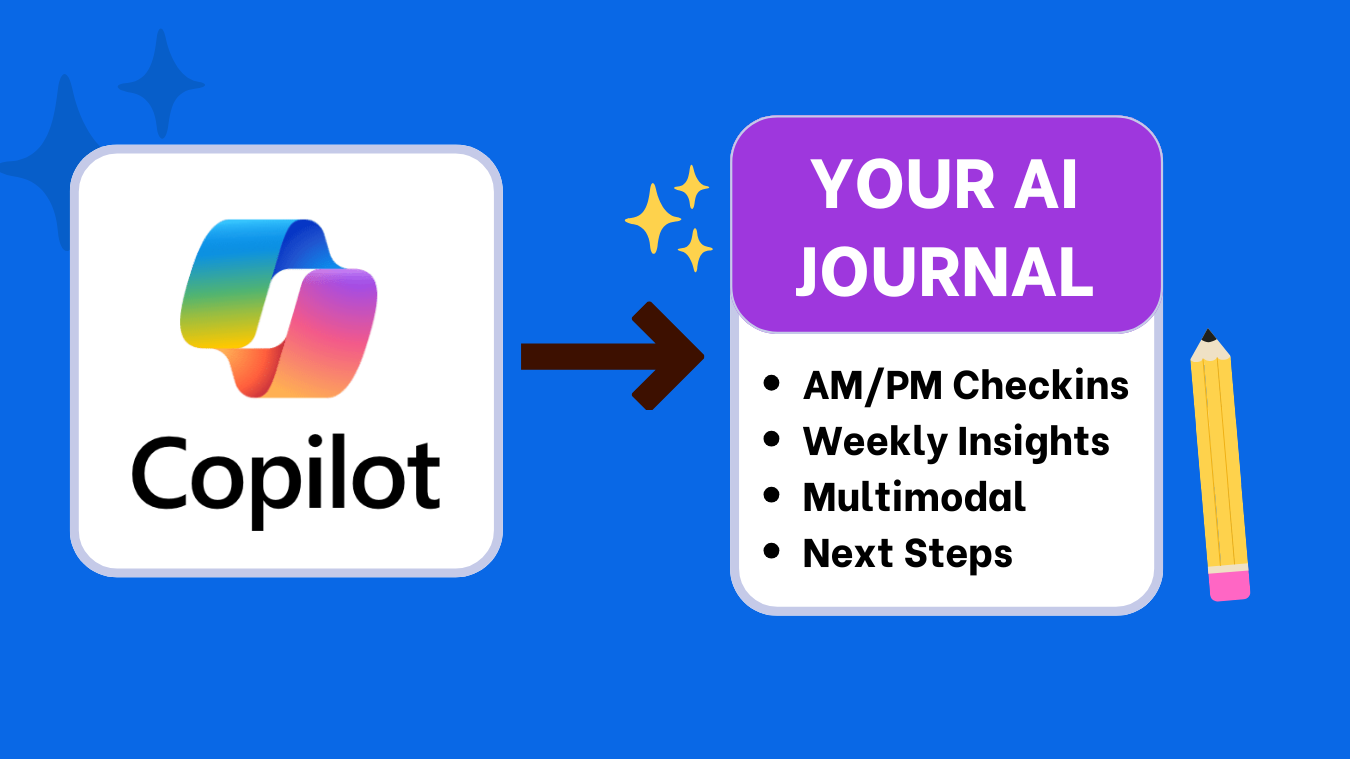
Journaling with Microsoft Copilot is a fast, free way to keep a daily log using GPT-4. I reuse one Copilot chat, paste a short “Copilot Journaling Coach” instruction, then run AM/PM prompts, an optional voice flow, and a short weekly review. Each entry ends with a 2-line summary and one realistic next step. Start with the workflow below, then visit the AI Journaling Hub for tool comparisons and prompts or open Best AI for Journaling to see export options.
My Copilot Journaling Workflow
- Set up once: Create a “Daily Journal” chat and paste the Copilot coach instruction below.
- AM prompt (3 min): intention → one focus → tiny action → 2-line summary.
- PM prompt (3 min): win → lesson → challenge → reframe → 2-line summary.
- Optional voice: dictate a 60–120s note; get a tidy takeaway + tag.
- Weekly review (10 min): paste the week’s entries; get themes and two experiments.
- Export/backup: copy to Word/OneNote/Markdown weekly; stay portable.

Step 1 — One-time setup
Goal: Reuse a single thread so Copilot keeps context and your tone stays consistent.
Paste this Copilot journal instruction once
-
Act as my journaling coach. Keep a warm, concise, non-judgmental tone.
AM: ask intention, one focus, and one tiny action before noon.
PM: ask one win, one lesson, one challenge; offer a realistic reframe and one micro-improvement for tomorrow.
If I dictate or paste a short transcript, include it. For every entry, end with a 2-line summary and one tag (mood or topic). Keep outputs ≤120 words.
Why it matters
Fixes tone and structure. No daily re-explaining. Consistency beats length.
Step 2 — Morning check-in (AM)
Goal: Clarity and one doable action.
Paste-ready AM prompt
-
It’s my AM entry. Ask me:
1) What matters today?
2) One focus?
3) One tiny action before noon.
Then return a 2-line summary and restate the action.
Tip: in Edge, keep Copilot pinned so AM takes under 3 minutes. Add the action to your calendar.
Step 3 — Evening reflection (PM)
Goal: Close the loop and reset.
Paste-ready PM prompt
-
It’s my PM entry. Ask me:
1) One win,
2) One lesson,
3) One challenge today.
Offer a realistic reframe and one micro-improvement for tomorrow. End with a 2-line summary.
Step 4 — Voice journaling (hands-free)
Goal: Capture thoughts fast; Copilot tidies and tags.
Paste-ready voice prompt
-
Transcribe this 60–120s voice note (or dictation). Clean wording. Ask one clarifying question.
Then summarize in 2 lines and add one tag (mood or topic).
Tip: On Windows, you can dictate with voice typing, then paste into Copilot for the tidy summary.
Step 5 — Weekly review (10 minutes)
Goal: See patterns; choose two small experiments for next week.
Paste-ready weekly prompt
-
Using this week’s entries (paste AM/PM summaries): list
• Themes,
• One highlight,
• One lesson,
• Two small experiments for next week.
Keep the output ≤120 words.
Step 6 — Optional add-ons
- Gratitude & reframe: 3 gratitudes → why they mattered → one gentle reframe.
- Mood tracking: 1–5 rating + one word; ask for a 2-line pattern snap on Fridays.
- Tags: add a simple tag per entry (energy, focus, relationship, health).
Step 7 — Export & backup
- Copy weekly summaries to Word, OneNote, or Markdown.
- Name files like
Journal-YYYY-MM-DD-wkNNfor easy search. - Keep lightweight snapshots so you can switch tools later without losing history.
See export paths in the comparison.
Step 8 — Privacy & safer prompts
- Redact names/identifiers; use initials or roles.
- For sensitive events, write privately first, then reflect on a condensed summary in Copilot.
- Review account/data-sharing settings quarterly. Turn off web grounding when you don’t need it.
- Prefer local storage for raw details; sync summaries only.
Read the privacy guide for trade-offs and local-first options.
My Copy-ready Copilot journaling prompts
Bookmark these Copilot prompts. They match the AM/PM + voice + weekly workflow above.
AM check-in
It’s my AM entry. Ask intention, one focus, and one tiny action before noon.
Return a 2-line summary and restate the action. Keep ≤120 words.
PM reflection
It’s my PM entry. Ask one win, one lesson, one challenge.
Offer a realistic reframe and one micro-improvement for tomorrow. End with a 2-line summary.
Voice to insight
Transcribe this 60–120s note (or dictated text). Clean wording. Ask one clarifying question.
Summarize in 2 lines and suggest one tag (mood or topic).
Weekly review
From this week’s entries: list themes, a highlight, a lesson, and two small experiments for next week. ≤120 words.Gratitude + reframe
Guide me through: 1) 3 gratitudes, 2) why each mattered, 3) one challenge, 4) a realistic reframe. End with a 2-line summary.Copilot journaling FAQs
Do I need a paid plan?
No. Free Copilot works for daily entries. Paid tiers mainly help with longer context/history.
How long should entries take?
3–5 minutes morning and evening. Consistency beats length for journaling.
Can I journal by voice?
Yes. Dictate your note, then run the voice prompt for a 2-line takeaway and tag.
How do I keep it private?
Redact names and identifiers, turn off web grounding when not needed, and store weekly summaries locally. See Private AI Journaling.
Where should I store entries?
Anywhere you’ll open tomorrow: Word, OneNote, Notion, Obsidian, or calendar notes. Export weekly snapshots.
Conclusion
With one reusable thread and a few prompts, Microsoft Copilot journaling delivers fast daily clarity on any Windows or Edge setup. Keep AM/PM short, add a weekly review, and export snapshots to stay portable. For more AI journal tool how-tos, workflows, and prompts, open the AI Journaling Hub or compare tools in Best AI for Journaling.